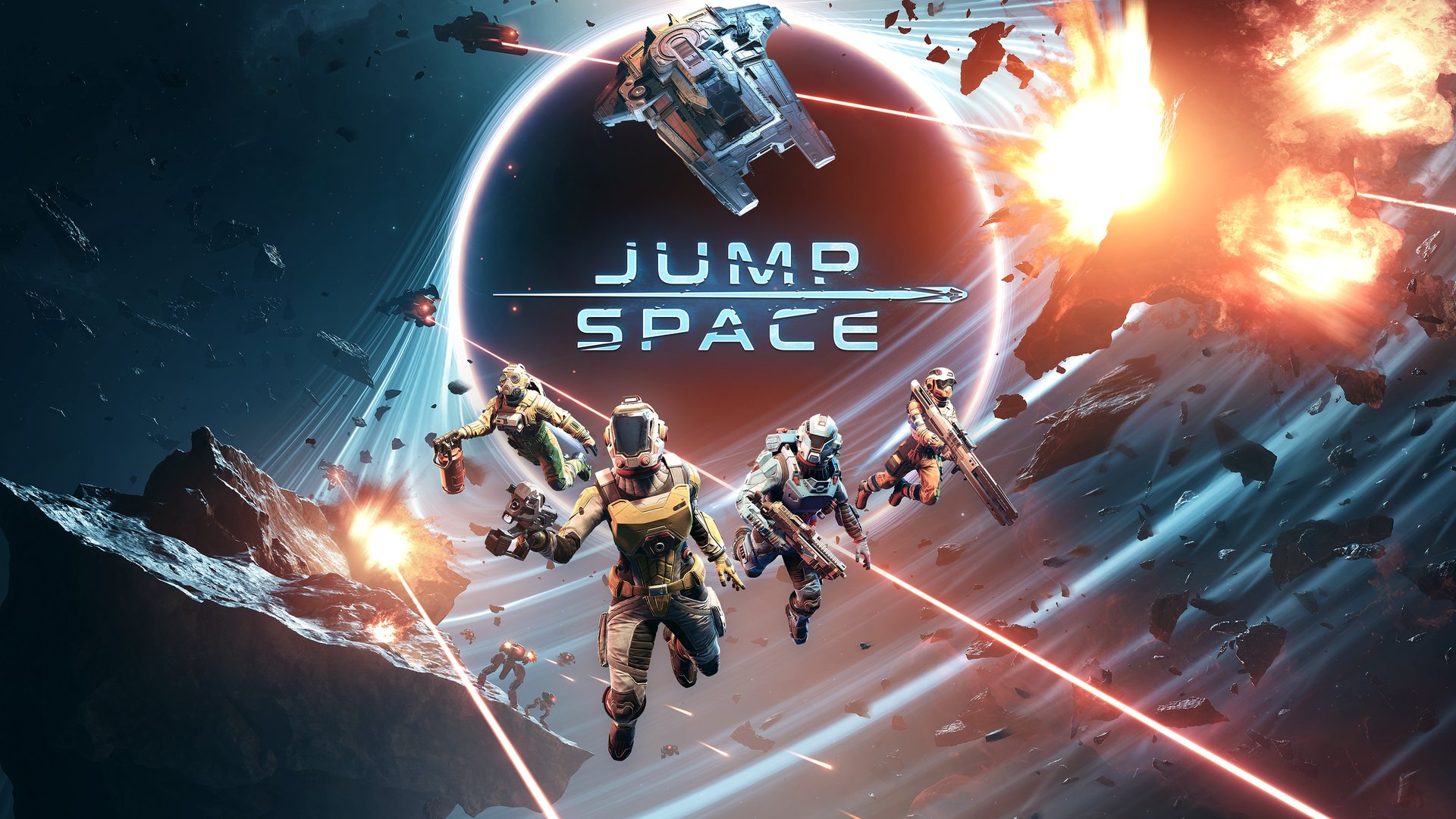
How to Fix Jump Space Xbox Crashing Issues: A Complete Guide
Experiencing Jump Space Xbox crashing? Discover effective troubleshooting steps, from clearing cache to system updates, to get back into the game smoothly.
Published:
Table of Contents
Are you currently facing frustrating Jump Space Xbox crashing issues that prevent you from exploring the cosmos? It is incredibly disheartening when a game you are excited to play fails to launch or freezes mid-mission, but you are certainly not alone in this struggle.
Many players have reported stability concerns, making fixing Jump Space Xbox crashing errors a top priority for those eager to dive back into the action. This guide provides a comprehensive walkthrough of solutions to resolve these technical hurdles, helping you restore your gaming experience quickly and efficiently.
Understanding the Current Stability Landscape
The development team at Keepsake Games has acknowledged that some players are encountering performance bugs. According to recent community reports, developers are actively working on an official patch to remedy these stability issues. While waiting for this update, there are several manual steps you can take to stabilize your console environment.
Quick Troubleshooting Checklist
Before diving into deep system settings, ensure your hardware is operating under optimal conditions.
Check Item
Potential Issue
Recommended Action
Internet Connection
Packet loss/Latency
Run a network test in Xbox settings
Game Updates
Outdated version
Check "Manage Games & Add-ons" for updates
Console Storage
Drive fragmentation
Free up at least 20GB of space
Power State
Cached errors
Perform a full power cycle
Step-by-Step Fixes for Jump Space Performance
If you are repeatedly dealing with Jump Space Xbox crashing, following a structured troubleshooting approach is essential. Start with the simplest solutions before moving to more advanced network or system configurations.
1. Clearing Persistent Storage and Cache
Cached data can often become corrupted, leading to the game failing to load or crashing during startup.
Persistent Storage: Navigate to Settings > Devices & Connections > Blu-ray > Persistent Storage and select "Clear persistent storage."
Game Cache: Go to "My Games & Apps," highlight Jump Space, press the Menu button, and select "Manage game and add-ons." Under "Saved data," select "Reserved space" and clear it.
Why this works
Clearing reserved space forces the game to rebuild its temporary data files upon the next launch, which often resolves "stuck at loading screen" bugs.
2. Performing a Full Power Cycle
A simple restart is rarely enough when dealing with persistent crashes. A power cycle clears the console’s RAM and resets the hardware handshake.
Press and hold the Xbox power button on the console for 10 seconds.
Once the console shuts down completely, unplug the power cord from the wall outlet.
Wait for at least 60 seconds to allow the capacitors to discharge.
Plug the console back in and power it up.
3. Network and Account Refresh
Sometimes, the issue isn't the game files themselves but how the console communicates with the game servers.
Method
Why It Helps
Alternate MAC Address
Clears network conflicts and refreshes IP assignment
Remove/Add Account
Resets local profile synchronization settings
Manual Port Selection
Helps bypass restrictive NAT types that cause disconnects
To try a manual port, go to Settings > General > Network Settings > Advanced Settings > Alternate port selection. Choosing a port starting with 4 or 5 often yields better stability for peer-to-peer connections.
Advanced Solutions for Persistent Issues
If you are still experiencing Jump Space Xbox crashing after trying the basic steps, it is time to look at your network configuration and installation integrity.
DNS Settings Optimization
Changing your DNS can significantly improve the stability of the connection between your console and the game servers. You can manually configure your DNS in the Network Settings menu:
Primary DNS: 8.8.8.8
Secondary DNS: 8.8.4.4
Alternatively, try the Cloudflare DNS settings (1.1.1.1 and 1.0.0.1) if the Google servers do not resolve your connection issues. Many players in the community have noted that switching DNS settings helped reduce black screen occurrences.
Reinstalling the Game
If none of the above steps work, the game installation itself may be corrupted. Uninstall the game, restart your console, and perform a fresh download directly from the official Steam page or the Xbox Store interface. A clean install ensures that all game patches are applied correctly without remnant conflict files.
Community Insights and Official Support
It is important to remember that you are part of a larger community. Many players have shared their experiences regarding Jump Space Xbox crashing on forums and social media.
Community Reports: Frequent crashes in multiplayer modes are often tied to sync errors between players. Ensure all players in your party have updated their consoles to the latest firmware.
Official Communication: The developers have confirmed that an official patch is in the verification phase. Keep an eye on their official social media channels for the release announcement.
If you have exhausted all troubleshooting steps, do not hesitate to contact official support. Provide them with your specific console model (e.g., Series S or X) and a description of when the crash occurs (e.g., during startup or while playing co-op) to receive tailored assistance.
FAQ: Frequently Asked Questions
Q: Will clearing reserved space delete my game progress?
A: Generally, no. Reserved space contains temporary cache files. However, it is always best practice to ensure your save data is synced to the cloud before performing deep system maintenance.
Q: Why does Jump Space crash specifically on my Xbox Series S?
A: Jump Space Xbox crashing can occur on any console model, but sometimes specific hardware architectures experience memory management issues that developers address in subsequent patches.
Q: Should I wait for the developer patch?
A: If the game is currently unplayable, try the steps listed above. If you still encounter issues, waiting for the official patch is the best course of action, as it will likely address the root cause of the stability problems.
Q: Does running the game from the Store help?
A: Yes, some players have found that launching the game directly from the Store page rather than the "My Games & Apps" library can bypass certain startup glitches.