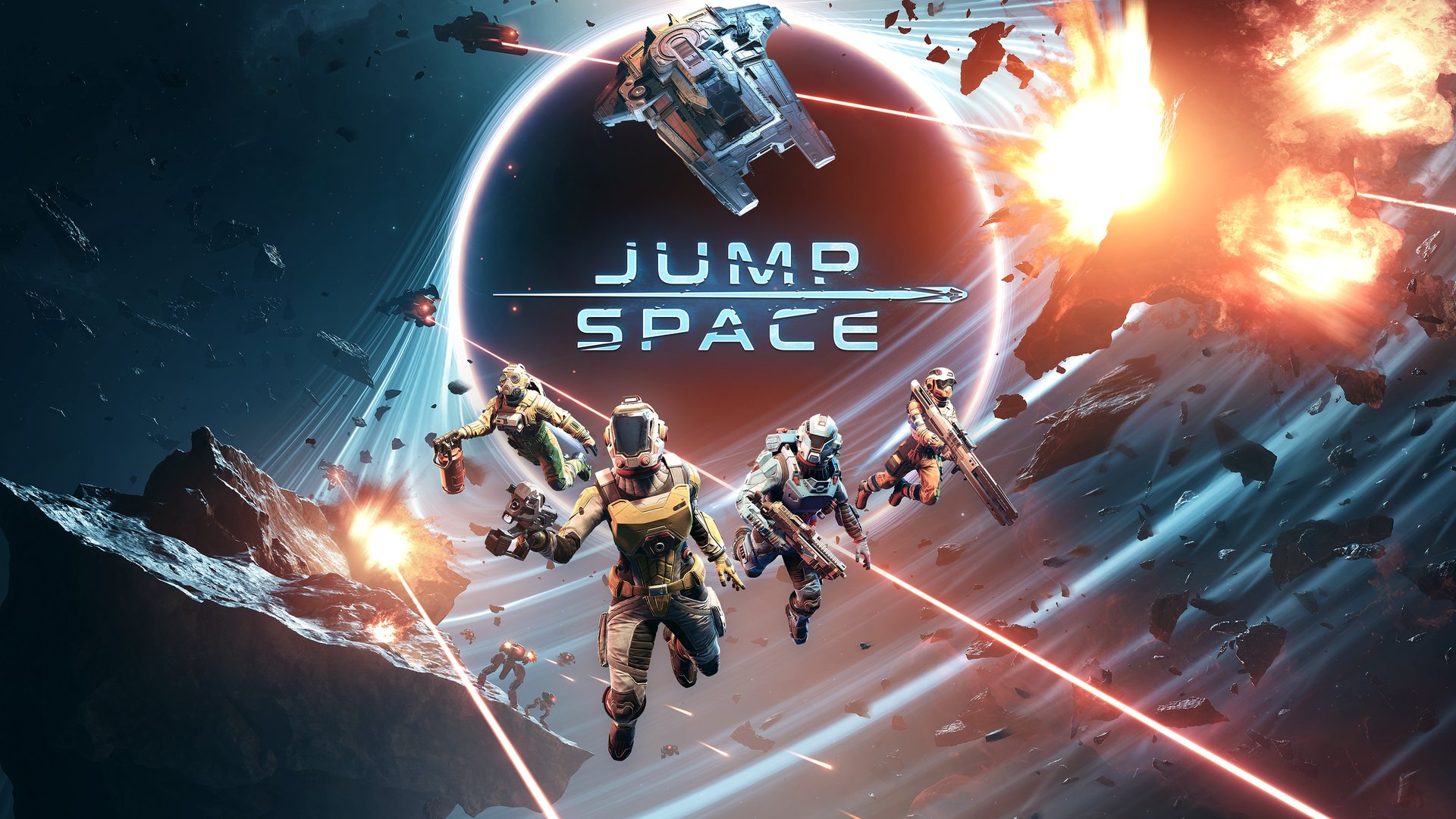
Jump Space DirectX 11 or 12: Which Boosts Your FPS Performance?
Struggling with performance in Jump Space? Discover whether using Jump Space DirectX 11 or 12 provides better stability and higher FPS for your gaming rig.
Published:
Table of Contents
When diving into the immersive universe of Keepsake Games' latest title, nothing ruins the experience faster than inconsistent frame rates or stuttering during intense combat. Many players find themselves questioning whether running Jump Space DirectX 11 or 12 is the key to unlocking smoother gameplay. Choosing the right API is essential for optimizing your hardware's potential, especially when you are looking to stabilize your performance.
In this guide, we will analyze the technical impact of these graphics APIs on your system. Whether you are dealing with CPU bottlenecks or simply want to maximize your visual fidelity, understanding the relationship between Jump Space DirectX 11 or 12 is the first step toward a flawless gaming session.
Understanding the Graphics API Landscape
At its core, a Graphics API acts as the bridge between your game and your hardware. While DirectX 12 (DX12) is often marketed as the modern standard, DirectX 11 (DX11) remains a powerhouse for stability and compatibility. For a game like Jump Space, the choice between the two can significantly alter how your GPU and CPU communicate.
DX11 vs. DX12: Key Differences
Feature
DirectX 11
DirectX 12
CPU Efficiency
Moderate; single-core reliance
High; multi-threaded optimization
Stability
Generally higher for older hardware
Variable; prone to shader compilation stutters
Advanced Features
Basic Ray Tracing support
Full Ray Tracing, Mesh Shaders, VRS
Best For
Older rigs and stability seekers
Modern hardware with high core counts
As noted by various community reports, while DX12 is designed to distribute processing tasks across multiple CPU cores, it can sometimes introduce overhead that leads to micro-stuttering. Conversely, DX11 is often cited by veteran players as the "safer" choice for consistent frame pacing.
Why API Choice Impacts Your FPS
If you have noticed that your FPS remains stagnant regardless of your graphical settings, you might be experiencing a CPU bottleneck rather than a GPU limitation. Some players have reported that changing resolution or texture quality in Jump Space does not yield the expected FPS increase, suggesting that the game engine’s interaction with the CPU is the primary factor.
Common Performance Indicators
Consistent FPS: If your frame rate doesn't budge when changing settings, your CPU is likely the limiting factor.
Stuttering in Combat: High activity, such as particle effects or laser fire, can overwhelm CPU threads if the API overhead is too high.
Hardware Utilization: If your GPU usage is below 90% while your FPS is capped, your system is likely waiting on the CPU to process draw calls.
Check Your Hardware Usage
Use monitoring tools like MSI Afterburner or the Xbox Game Bar to check if your CPU usage is peaking on specific cores while your GPU sits idle. If this is the case, switching APIs is a recommended troubleshooting step.
How to Force DirectX 11 in Jump Space
If you find that the default settings are causing performance dips, forcing the game to run on a different API is a common community-suggested fix. Many players have found success by utilizing Steam launch options to override the default renderer.
In the General tab, look for the Launch Options field.
Type -dx11 into the text box.
Close the window and relaunch the game.
By forcing the game to use DX11, you may bypass some of the shader compilation issues often associated with DX12. Community reports suggest that for many users, this simple change results in a more stable experience, especially during high-intensity scenes.
Troubleshooting Performance Issues
Beyond selecting between Jump Space DirectX 11 or 12, there are other factors that influence your performance. Optimization is a multi-faceted challenge, and sometimes the issue lies outside the API.
Essential Performance Checklist
Action
Why It Helps
Update GPU Drivers
Ensures compatibility with the latest API patches.
Power Plan Settings
Set Windows to "High Performance" to prevent CPU throttling.
Verify Game Files
Fixes corrupted assets that cause intermittent stutters.
Disable Overlays
Reduces background CPU load for smoother frame delivery.
Some players have noted that the game's engine uses specific CPU cores more heavily than others. If you are on an older CPU architecture, you might see lower utilization percentages (e.g., 30%) while still feeling the impact of a bottleneck. In these cases, upgrading your hardware or closing background applications is often more effective than toggling graphical settings.
The Role of Hardware in Your Experience
It is crucial to acknowledge that your specific build plays a massive role in how the game handles these APIs. Users with high-end hardware might find that DX12 provides better utilization of their multiple cores, while those on mid-range or aging hardware may find DX11 significantly smoother.
Avoid Over-tweaking
Do not change multiple variables at once. If you switch to DX11, test the game for at least 15 minutes before deciding to change your resolution or anti-aliasing settings, as this makes it easier to identify the cause of any performance changes.
FAQ: Optimizing Jump Space Performance
Q: Should I always use DX12 for better graphics?
A: Not necessarily. While DX12 supports more advanced features, DX11 is often more stable and provides a smoother experience if you are not utilizing features like Ray Tracing or Frame Generation.
Q: Will Jump Space DirectX 11 or 12 settings fix my stuttering?
A: It depends on the source of the stutter. If it is caused by shader compilation or API overhead, switching to DX11 can help. However, if the stutter is due to a CPU bottleneck, you may need to adjust your background processes or upgrade your hardware.
Q: Can I switch back to DX12 if DX11 doesn't help?
A: Yes. Simply return to the Steam launch options and remove the -dx11 command. The game will revert to its default behavior upon the next launch.
Q: Does the game engine handle multi-threading well?
A: Performance varies significantly by hardware. Some users report excellent scaling across all cores, while others experience bottlenecks that suggest the engine may favor specific core counts or architectures. Testing both APIs is the most reliable way to find your "sweet spot."