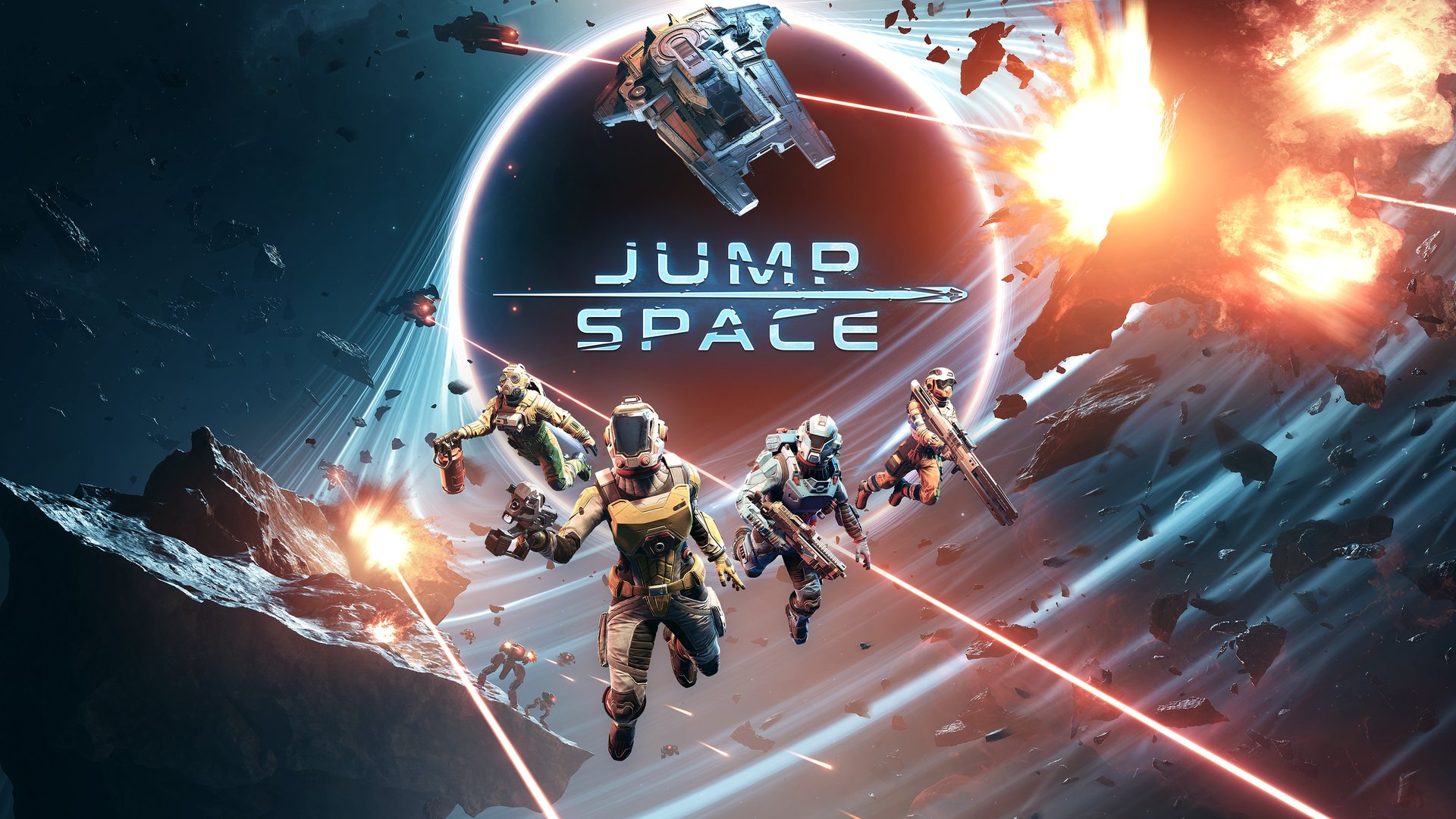
Jump Space Optimization Guide: Boost Your Performance Today
Struggling with frame drops? Discover our expert Jump Space optimization guide to enhance your gameplay, fix stuttering, and maximize your FPS in space.
Published:
Table of Contents
Navigating the treacherous depths of space in Keepsake Games' latest title can be an exhilarating experience, but performance issues often stand in the way of true immersion. Mastering proper jump space optimization is essential for maintaining fluid movement during intense combat encounters and complex ship management tasks.
Whether you are a seasoned pilot or a new recruit, understanding how to handle your hardware and settings is crucial. This guide provides actionable insights to help you stabilize your frame rate and ensure your ship runs as efficiently as possible, turning technical hurdles into a smooth, action-packed adventure.
Understanding the Current State of Performance
Since Jump Space is currently in Early Access, the graphics menu is intentionally kept lean by the developers. Many players find that standard settings like textures or shadows do not offer the granular control expected in finished titles. According to recent community reports, the game’s optimization is currently focused on underlying stability rather than deep visual customization.
Common Performance Hurdles
If you notice that changing your graphics settings from 1440p down to 480p has no impact on your FPS, you are likely experiencing a CPU bottleneck. Here is a breakdown of common symptoms reported by the player base:
Symptom
Potential Cause
Recommended Fix
Stuttering in combat
High particle count (fog/lasers)
Reduce background applications
FPS capped/unchanging
CPU limitation
Upgrade hardware or use -dx11
Input lag
V-Sync interference
Disable V-Sync in GPU settings
Loading hiccups
Drive speed issues
Use a high-speed SSD
Technical Tweaks for Better Stability
While official graphics menus are barebones, there are several "under-the-hood" adjustments you can make to improve your jump space optimization. One of the most frequently discussed solutions in the Steam community involves the API used to run the game.
Force DirectX 11
Many veteran players and modders suggest that DirectX 11 often provides superior stability compared to DirectX 12. To test this on your system:
Performance Monitoring
Always keep a hardware monitor open on a second screen to identify if your CPU or GPU is truly hitting 100% utilization during intense firefights.
Practical In-Game Optimization Strategies
Beyond technical settings, your playstyle significantly impacts how much your system struggles during a session. Effective resource management and efficient ship navigation are vital components of jump space optimization that every player should master.
Gameplay Efficiency Tips
Efficiency reduces the load on your ship’s systems and your own system’s resources. Below are some recommended tactics:
Action
Optimization Benefit
Use Cargo Teleporters
Reduces time spent in high-render areas
Bunny Hopping (B-hopping)
Less engine strain from continuous movement
Dissembling junk scraps
Clears temporary assets from memory
Avoid rapid camera panning
Prevents sudden rendering spikes
By using the cargo teleporters on the lower deck doors, you can streamline the looting process. This minimizes the time your client spends rendering complex freighter interiors, which is a common stress point for many mid-range PCs.
Advanced Resource Management: Power and Artifacts
Power management is a hidden layer of the game that affects your ship's responsiveness. In the early stages, you have limited slots, and managing your energy consumption is a form of jump space optimization that keeps your frame rates from dipping when the heat is on.
Strategic Equipment Swapping
Players have discovered that swapping items based on current needs is more efficient than keeping a static loadout.
The Jump Drive/Sensor Swap: Since these are small and used intermittently, keep them in your inventory until needed.
Rail Gun Utility: Use the rail gun's long-range capabilities to eliminate threats before they enter your immediate vicinity, reducing the amount of visual noise and particle effects you need to process at once.
Community-Driven Troubleshooting
The community is an invaluable resource for navigating the Early Access landscape. Many players have shared their experiences regarding system requirements and optimization myths. A common debate involves whether the game is CPU-bound. If your game engine is only utilizing a few cores, your total CPU usage might report low numbers (e.g., 30%), even if your system is actually struggling to keep up with the game's specific processing demands.
Hardware Comparison Summary
If you find that your performance remains unacceptable despite following the guides, it may be time to consider the age of your components.
Component Type
Recommendation for Smooth Play
CPU
Modern multi-core (AMD 5000+ series or equivalent)
RAM
16GB Minimum / 32GB Recommended
Storage
NVMe SSD (Avoid HDDs for core files)
GPU
RTX 30-series or equivalent (Mid-range is sufficient)
Final Thoughts on Optimization
Remember that jump space optimization is an ongoing process. As the developers work toward version 1.0, we expect more advanced graphics settings to be introduced. Until then, focus on maintaining a clean system, utilizing external FPS caps, and sticking to stable APIs like DirectX 11.
Avoid Third-Party "Boosters"
Be cautious of "game booster" software found online; many of these programs are unnecessary and may conflict with the game's anti-cheat or performance stability.
FAQ: Frequently Asked Questions
Q: Why are the graphics settings in Jump Space so limited right now?
A: The game is currently in Early Access. The developers have officially prioritized stability and core mechanics, with more extensive graphics customization planned for future updates.
Q: Does enabling DLSS actually help with Jump Space optimization?
A: While DLSS and FSR are listed in the menu, many players report they have minimal impact on frame rate at this stage of development. Focus on resolution scale and windowed modes instead.
Q: What is the most effective way to gain FPS without a hardware upgrade?
A: Aside from using the -dx11 launch option, closing all background apps and using your GPU software (Nvidia Control Panel/AMD Adrenalin) to set a hard FPS cap can prevent stuttering.
Q: Is it true that my CPU is the bottleneck?
A: If you notice that changing graphical presets (from low to ultra) does not change your frame rate, your CPU is likely struggling to keep up with the game's logic and physics calculations.