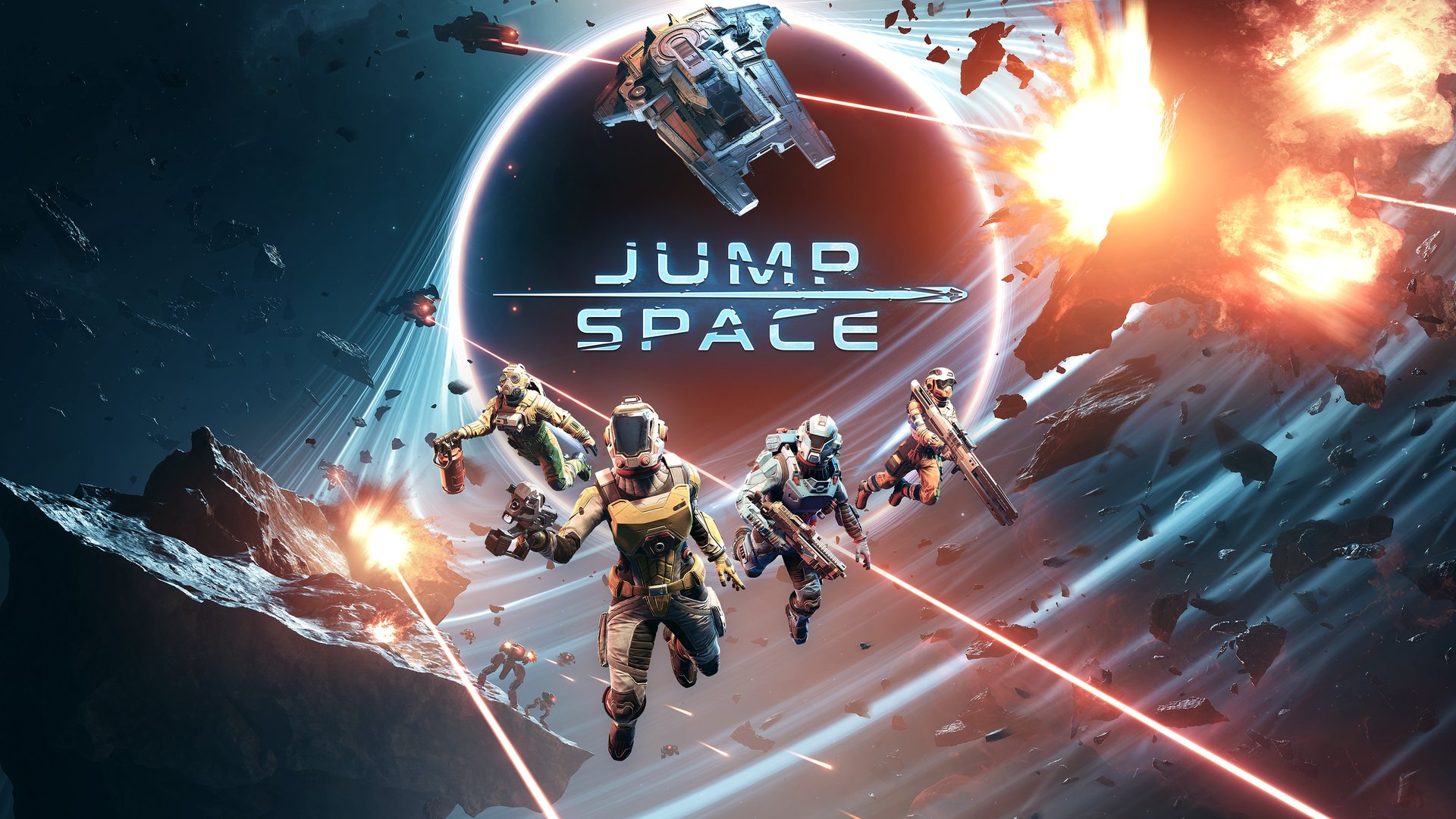
Fix Jump Space Crashing Computer: Best Solutions and Tips
Stop Jump Space crashing computer issues with our comprehensive guide. Fix black screens, lag, and launch errors with these verified community fixes.
Published:
Table of Contents
Few things are more frustrating than preparing for a deep-space salvage mission only to have jump space crashing computer errors send you straight back to your desktop. As a new release from Keepsake Games, Jump Space offers a thrilling tactical experience, but technical hurdles like freezing, black screens, and hard crashes have been reported by many players during the initial launch phase. Understanding why jump space crashing computer problems occur—ranging from memory leaks to hardware incompatibilities—is the first step toward stabilizing your game and protecting your progress.
In this guide, we will dive deep into every known fix, from basic Steam verification to advanced Intel CPU tuning and GPU driver rollbacks. Whether you are stuck in the prologue or experiencing hitches during long 60-minute missions, these steps are designed to get you back into the pilot's seat.
Quick Fix Overview
If you are experiencing immediate crashes, start by verifying game files on Steam and updating your GPU drivers. For Intel i9 users, community reports suggest down-clocking core frequency to 54x. Always ensure the game is running with administrator privileges to bypass permission-related freezes.
Initial Troubleshooting: The Essentials
Before diving into complex system modifications, it is vital to rule out common software glitches. Many instances of a jump space crashing computer are caused by simple file corruption or temporary service hangs.
Verifying Game Integrity
Steam games can occasionally download incorrectly, or files may become corrupted during an unexpected shutdown. Verifying the integrity of your game files forces Steam to compare your local files with the official versions on the server and replace any that are missing or damaged.
How to verify files:
Open your Steam Library.
Right-click on Jump Space.
Select Properties > Installed Files.
Click Verify integrity of game files.
Feature
Benefit of Verifying
Common Error Fixed
File Check
Ensures all assets are present
Missing .dll or .exe errors
Hash Comparison
Detects corrupted data
Crashing during loading screens
Automatic Repair
Re-downloads only broken files
Infinite "Starting" loop
Restarting the Environment
It sounds cliché, but a "Cold Boot" of both Steam and your PC clears the system RAM and resets background processes that might be interfering with the game's executable. According to community reports, this is often enough to resolve minor "stuck on black screen" issues that occur upon the first launch.
Advanced Launch Options and DirectX Settings
Jump Space utilizes modern rendering techniques that may conflict with specific hardware configurations. If your jump space crashing computer happens specifically when the 3D engine initializes, modifying the launch arguments can force the game to use a more stable version of DirectX.
Forcing DirectX Versions
DirectX 12 is the modern standard, but it can be unstable on older cards or specific driver versions. Switching to DirectX 11 is a common "silver bullet" for stability.
Steps to modify launch options:
Right-click Jump Space in Steam and select Properties.
Under the General tab, locate the Launch Options text box.
Enter one of the following commands:
-dx11 (Recommended for stability)
-dx12 (If your system supports Ray Tracing)
-d3d11 (Alternative legacy mode)
Command
Why use it?
Target Issue
-dx11
Better compatibility for older GPUs
GPU-related crashes at startup
-dx12
Optimized for newer hardware
Low FPS on high-end rigs
-windowed
Forces the game out of full-screen
Resolution mismatch crashes
Hardware-Specific Fixes: Intel and NVIDIA Workarounds
Recent player experience data suggests that Jump Space may have specific conflicts with high-end hardware, particularly Intel's 13th and 14th generation CPUs and certain NVIDIA 30-series cards.
Intel CPU Core Tuning
According to a highly successful community report on the Steam forums, users with top-of-the-line Intel CPUs (like the i9-13900K or 14900K) have found success by slightly lowering their core frequency. This is often necessary for games built on Unreal Engine that experience "out of video memory" errors despite having plenty of VRAM.
Voltage and Frequency Risks
Altering core tuning can affect system stability and may void certain warranties. Proceed only if you are comfortable using the Intel Extreme Tuning Utility (XTU).
The "54x" Fix:
Players have reported that lowering the Core Tuning Frequency from 55x or 56x down to 54x resolved persistent crashes that occurred within minutes of gameplay. This suggests the game may be triggering a brief power-draw spike that the CPU handles poorly at maximum clock speeds.
GPU Driver Rollbacks (Gigabyte 30-Series)
Interestingly, some players using Gigabyte-branded RTX 3080, 3080 Ti, 3090, and 3090 Ti cards have received "defective hardware" warnings. However, player experience shows that this is often a software conflict. Rolling back to driver version 566.36 has been cited as a functional workaround, allowing for stable, all-day play sessions.
Hardware Component
Reported Issue
Verified Workaround
Intel i9 CPUs
Instant crash to desktop
Lower Core Tuning to 54x in XTU
Gigabyte 3080/3090
"Defective" error message
Roll back to driver 566.36
High-end NVIDIA 5080
Hard PC restarts
Disable all Overlays and check PSU
System Optimization and Permissions
A jump space crashing computer can also stem from Windows blocking the game from accessing necessary resources. Standard security features like Firewalls and Antivirus software often mistake high-performance games for suspicious activity.
Running as Administrator
Giving the game administrative privileges ensures it can write to its save folders and access system memory without being throttled by Windows User Account Control (UAC).
Go to the Jump Space installation folder (Steam > Manage > Browse local files).
Right-click the game’s .exe file.
Select Properties > Compatibility.
Check Run this program as an administrator.
Check Disable full-screen optimizations.
Adjusting Virtual Memory (Page File)
Jump Space is known to have memory leak issues, especially on Xbox and certain PC configurations. If your physical RAM fills up, Windows uses the "Page File" on your SSD as temporary overflow. If this file is too small, the game will crash.
Recommended Virtual Memory Settings:
Initial Size: 128 MB
Maximum Size: 24576 MB (24 GB)
Increasing this range provides a "safety net" for the game's memory usage, particularly during long missions where memory leaks are most prevalent.
Managing Overlays and Background Applications
Overlays are convenient but notorious for causing hooks into the game's rendering pipeline that lead to a jump space crashing computer. If you are experiencing "hitches" (where the frame freezes for several seconds), background apps are the likely culprit.
Disabling In-Game Overlays
It is highly recommended to disable all of the following:
Use the Task Manager (Ctrl + Shift + Esc) to close non-essential programs. Browsers like Chrome or Edge can consume significant RAM, leaving less for Jump Space to operate, which triggers the "Hitch detected" error often found in the game's logs located at %appdata%\..\LocalLow\Keepsake Games\Jump Space.
Application
Impact Level
Suggested Action
Discord
Medium
Disable Overlay
Google Chrome
High
Close during gameplay
Antivirus (Third-party)
High
Add Jump Space to "Exclusions"
RGB Software
Low
Disable if experiencing micro-stutter
Developer Status and Known Issues
Keepsake Games has officially acknowledged that resolving low FPS and crashing issues is their top priority. They are actively tracking "memory leaks" on both PC and Xbox Series X/S. Players are encouraged to check the official Jump Space Steam Store Page for the latest patch notes.
Current developer focus includes:
Prologue Stability: Fixes for crashes occurring at the repairable ship.
Salvage Mission Jumps: Addressing freezes when transitioning between planets.
Xbox Memory Leaks: Pushing fixes for dashboard crashes during 1-hour missions.
If you continue to experience problems, the final recommendation is a clean reinstallation. Uninstall the game via Steam, manually delete the leftover folders in steamapps/common, and reinstall on an SSD to ensure optimal data streaming speeds.
Frequently Asked Questions (FAQ)
Why is Jump Space crashing my computer during the prologue?
Prologue crashes are often linked to the initial asset load of the repairable ship. This can usually be fixed by verifying game files or updating your graphics drivers. If you are using an Intel i9, consider the core tuning workaround mentioned above.
How do I fix the "Hitch detected" error in Jump Space?
A "Hitch" occurs when a frame takes too long to complete (often over 2,000ms). This is typically caused by background applications hogging CPU resources or a slow hard drive. Ensure the game is installed on an SSD and close all unnecessary background programs like web browsers.
Can a firewall cause Jump Space to crash?
Yes, if the firewall blocks the game's connection to Steam services or its own backend, it may hang or crash. You should add Jump Space as an allowed application in your Windows Defender Firewall settings, ensuring both Private and Public boxes are checked.
Is the jump space crashing computer issue related to my hardware?
While the developers are working on optimization, certain hardware like the Gigabyte 30-series GPUs or Intel 13th/14th gen CPUs require specific tweaks (like driver rollbacks or down-clocking) to maintain stability due to how the game interacts with high-performance components.